Online PAN Card Photo Resizer Tool
Applying for a PAN card online can sometimes be confusing, especially when your photograph or signature does not match the required size, dimensions or file format. A simple solution is to use an online PAN card photo resizer tool that helps you crop, resize and prepare your image before uploading it to your PAN application.
Our tool is designed to make this process easier. You can upload your photo, select NSDL or UTIITSL, choose Photo or Signature, adjust the crop area and download the final JPG image.
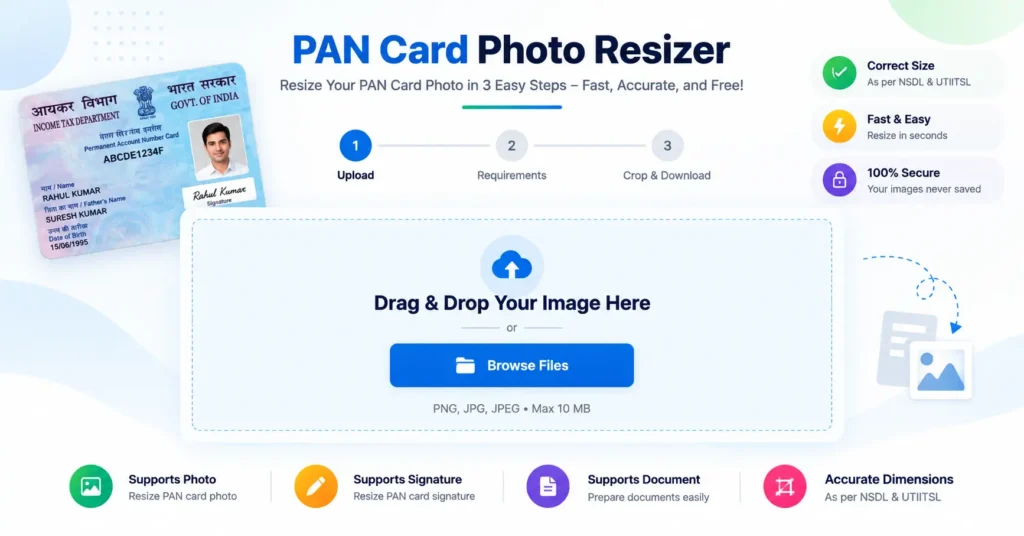
👉 Use the Online PAN Card Photo Resizer Tool
Note: The tool is an independent image-preparation utility. Always check the latest requirements shown by the PAN application portal before submitting your final image.
What Is an Online PAN Card Photo Resizer Tool?
An online PAN card photo resizer tool is a browser-based utility that helps you prepare a photograph or signature for a PAN card application.
Instead of opening Photoshop or another image-editing program, you can simply upload your image and select the required option.
The tool can help you:
-
Resize PAN card photo online
-
Crop your PAN photograph
-
Prepare a photo for NSDL
-
Prepare a photo for UTIITSL
-
Resize PAN card signature
-
Convert the final image to JPG
-
Check image dimensions
-
Check the approximate final file size
-
Preview the image before downloading
The tool uses a step-by-step workflow so even users with little knowledge of image editing can prepare their files easily.
PAN Card Photo Size – NSDL vs UTIITSL
The photo requirements used by the tool are different for NSDL and UTIITSL. Therefore, selecting the correct application option is important.
| Requirement | NSDL | UTIITSL |
|---|---|---|
| Photo Width | 197 px | 213 px |
| Photo Height | 276 px | 213 px |
| Aspect Ratio | 197:276 | 1:1 |
| DPI shown by tool | 200 DPI | 300 DPI |
| Format | JPEG | JPEG |
| Photo Size | 20–50 KB displayed | Below 30 KB displayed |
| Background | Light, preferably white | Light, preferably white |
These are the specifications currently configured in the tool.
Important: Do not assume that one photo size works for every PAN application. Requirements can be revised, so check the instructions on the application page you are actually using.
How to Resize PAN Card Photo Online?
Using the online PAN card photo resizer tool is simple.
1. Upload Your Photo
First, click the Browse Files button and select your photograph.
You can also drag and drop the image into the upload area.
The current tool interface supports:
-
PNG
-
JPG
-
JPEG
The maximum upload size is 10 MB.
After uploading, the tool shows the file name, file size and a thumbnail preview. You can remove the selected image if you want to choose another file.
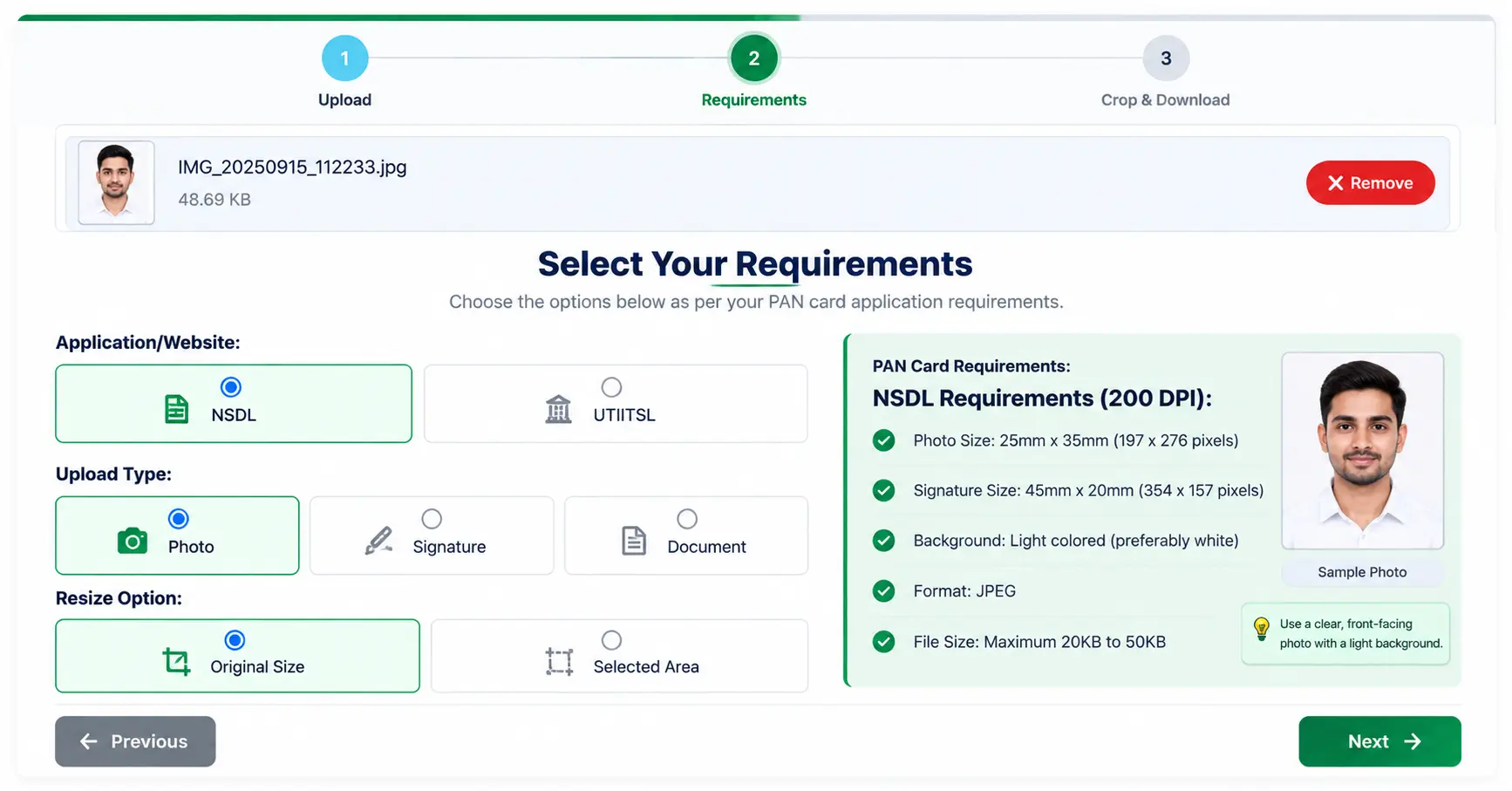
2. Select NSDL or UTIITSL
After uploading the image, select the application option:
-
NSDL
-
UTIITSL
The tool changes the requirements according to your selection.
This step is important because the photo dimensions are not the same for both options.
3. Select Photo or Signature
Next, select what you want to resize.
The tool provides:
-
Photo
-
Signature
-
Document
If you are preparing your photograph, select Photo. If you need to prepare your signature, select Signature.
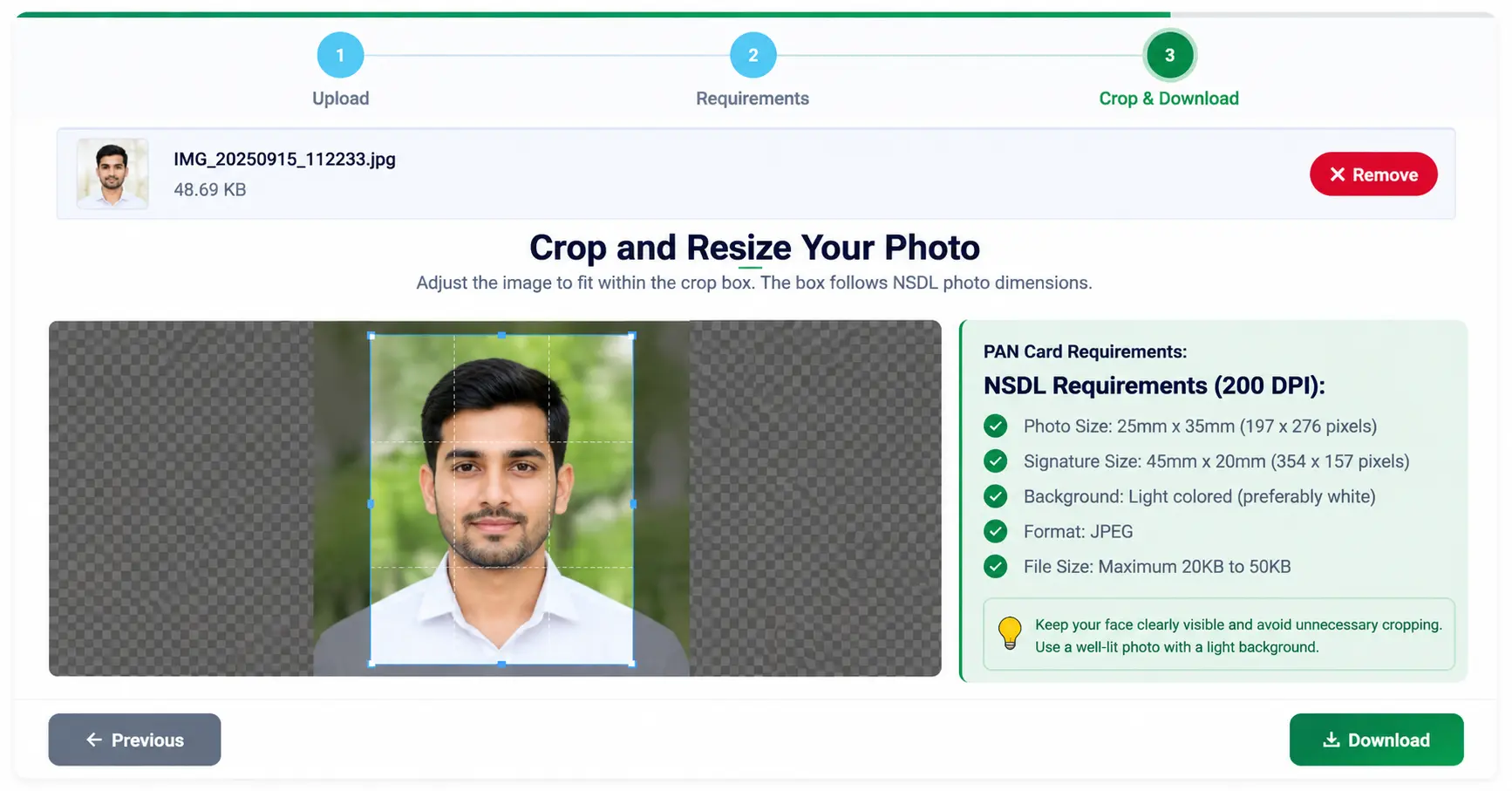
4. Crop the Image
After selecting your requirements, continue to the crop section.
-
You can move and zoom the image to position it correctly inside the crop area.
-
The tool automatically uses the appropriate aspect ratio according to your selected option.
-
Try to keep the face clearly visible.
-
Avoid unnecessary cropping.
5. Preview the Final Image
The tool provides a final preview after cropping.
You can see:
-
Final dimensions
-
Approximate file size
-
DPI
-
JPEG output
-
Size-limit warning, if applicable
The tool checks the generated image size and displays a warning if it exceeds the configured limit.
6. Download the JPG
Once you are satisfied with the result, click Download.
The tool generates the cropped image as a JPEG/JPG file.
How to Resize PAN Photo Without Photoshop?
You do not need Photoshop to resize a PAN card photo.
An online PAN card photo resizer tool can perform the basic work directly in your browser.
The complete process is:
Upload → Select Application → Select Photo → Crop → Preview → Download
This is useful for users who are applying for a PAN card from a mobile phone or a computer and do not have professional image-editing software.
The tool also uses predefined crop ratios, so you do not have to manually calculate the correct aspect ratio.
PAN Card Photo Size in Pixels
One of the most searched questions is “What is the PAN card photo size in pixels?”
The answer depends on the application option selected in the tool.
For the current tool configuration:
NSDL Photo
197 × 276 pixels
UTIITSL Photo
213 × 213 pixels
The NSDL option uses a portrait crop ratio, while the UTIITSL option uses a square crop ratio.
This difference is important because using the wrong dimensions may result in an image that does not match the upload requirement.
PAN Card Photo Size in KB
Pixel dimensions and file size are two different things.
For example, an image can have the correct dimensions but still be too large in KB.
| Term | Meaning |
|---|---|
| Pixels | Determines image width and height |
| KB | Determines the file size |
| DPI | Represents image resolution information |
| JPEG/JPG | Image file format |
The tool displays the generated file size after creating the crop. If the file is larger than the configured maximum, it shows an over-limit message.
Therefore, always check both dimensions and file size before uploading your PAN photograph.
PAN Card Signature Size
The same tool can also be used for PAN card signature resizing.
| Type | Dimensions | DPI | Format |
|---|---|---|---|
| NSDL Signature | 354 × 157 px | 200 DPI | JPEG |
| UTIITSL Signature | 400 × 200 px | 600 DPI | JPEG |
These dimensions are configured in the current tool code.
If you are preparing a signature instead of a photograph, make sure you select Signature before continuing.
What Photo Should You Upload?
For the best result, start with a clear original photograph.
Here are some useful tips:
-
Use a recent photograph.
-
Make sure your face is clearly visible.
-
Avoid excessive blur.
-
Use good lighting.
-
Avoid strong shadows.
-
Keep the background simple.
-
Avoid unnecessary objects around the face.
-
Do not use heavily filtered photographs.
-
Use a sufficiently large original image for cropping.
The tool’s displayed requirements mention a light-coloured background, preferably white.
Official PAN instructions can vary depending on the application route, so the latest instructions on the relevant application portal should be treated as the final authority.
Why Use an Online PAN Card Photo Resizer Tool?
There are several advantages to using a dedicated PAN photo tool instead of a general image editor.
Easy to Use
You do not need professional photo-editing skills.
No Manual Calculation
The tool already provides predefined dimensions for the available options.
Crop and Resize Together
You can adjust the image and generate the required output in the same workflow.
JPG Output
The final result is generated as a JPEG image.
Mobile Friendly
The tool’s interface includes responsive styling for smaller screens, making it suitable for mobile browsers as well.
Preview Before Download
You can check the final image before downloading it.
Common PAN Photo Resizing Problems
My PAN Photo Is Too Large in KB
- Correct dimensions do not automatically mean the file size will be within the required limit.
- JPEG compression and image details affect the final file size. Check the size displayed by the tool before downloading.
My Face Looks Stretched
- This can happen when an image is manually resized using an incorrect width-to-height ratio.
- Use the crop area provided by the tool instead of manually stretching the image.
My Photo Has the Wrong Dimensions
- Check whether you selected the correct application option.
- NSDL and UTIITSL use different dimensions in the current tool configuration.
My Image Is Blurry
Start with a clear, high-quality original photograph. Increasing the dimensions of a very small or blurry image cannot restore lost detail.
Can I Use the PAN Photo Resizer on Mobile?
Yes.
The tool is designed with responsive layouts for mobile and tablet screens. The upload area, buttons and crop interface adjust for smaller displays.
You can therefore:
-
Open the tool on your phone.
-
Select a photo from your gallery.
-
Crop and resize it.
-
Preview the result.
-
Download the JPG.
No desktop photo editor is required.
Frequently Asked Questions (FAQ)
Q1. What is an online PAN card photo resizer tool?
Ans. An online PAN card photo resizer tool helps you crop and resize a photograph according to the selected PAN application requirements. It can be used directly from a web browser.
Q2. How can I resize my photo for a PAN card?
Ans. Upload your photograph, select NSDL or UTIITSL, choose Photo, adjust the crop area and download the generated JPG.
Q3. What is the PAN card photo size in pixels?
Ans. The dimensions depend on the application option. The current tool uses 197 × 276 pixels for NSDL and 213 × 213 pixels for UTIITSL.
Q4. What is the NSDL PAN photo size?
Ans. The current tool’s NSDL setting is 197 × 276 pixels at 200 DPI.
Q5. What is the UTIITSL PAN photo size?
Ans. The current tool’s UTIITSL setting is 213 × 213 pixels at 300 DPI.
Q6. Can I resize my PAN photo online without Photoshop?
Ans. Yes. You can use the online PAN photo resizer directly in your browser to crop and resize your photograph without Photoshop or other image-editing software.
Q7. Can I resize a PAN card signature?
Ans. Yes. The tool includes a separate Signature option for NSDL and UTIITSL, allowing you to prepare your signature according to the configured dimensions.
Q8. Can I convert PNG to JPG for a PAN application?
Ans. Yes. The final cropped result is generated as a JPEG/JPG image by the tool.
Q9. Why is my PAN photo showing an over-size warning?
Ans. The generated JPEG may be larger than the configured KB limit. Check the displayed file size before downloading or submitting the image.
Q10. Can I use this PAN photo resizer on my phone?
Ans. Yes. The tool has a responsive interface designed to work on mobile devices as well as desktop computers.
Q11. What should be the background of a PAN card photo?
Ans. The current tool displays a light-coloured background, preferably white, for the PAN photo. Always verify the latest instructions on the PAN application portal before submitting your photograph.
Q12. Does the PAN photo resizer guarantee PAN application approval?
Ans. No. An image-resizing tool cannot guarantee application approval. Acceptance depends on the current requirements, image quality and information submitted in the PAN application. Always check the latest requirements before submission.
Conclusion
An online PAN card photo resizer tool can make the process of preparing a PAN photograph much easier. Instead of manually editing the image in Photoshop or another application, you can upload your photo, select NSDL or UTIITSL, choose the required upload type, crop the image and download the final JPG.
The current tool also supports signature resizing and provides information about the generated dimensions, DPI and approximate file size.
For the best result, always start with a clear photograph, position your face correctly, check the final dimensions and verify the file size before uploading it to your PAN application.
Most importantly, check the latest instructions shown by the PAN application portal before submitting your image, because application requirements can change over time.
[IMAGE 4 – Add a final screenshot/banner of the PAN Card Photo Resizer tool here]
Ready to Resize Your PAN Photo?
Open the Online PAN Card Photo Resizer Tool, upload your image, select the appropriate PAN option, crop it and download your resized JPG.