What’s the Best Image Resizer? A Complete Guide to Resizing Images Online
Choosing the right image resizer depends on what you need to do with your photo. You may want to resize an image for a website, reduce its file size for an online form, prepare a passport-style photo, or adjust the dimensions of an image for social media. The best image resizer should make these tasks simple while giving you control over the final dimensions and image quality.
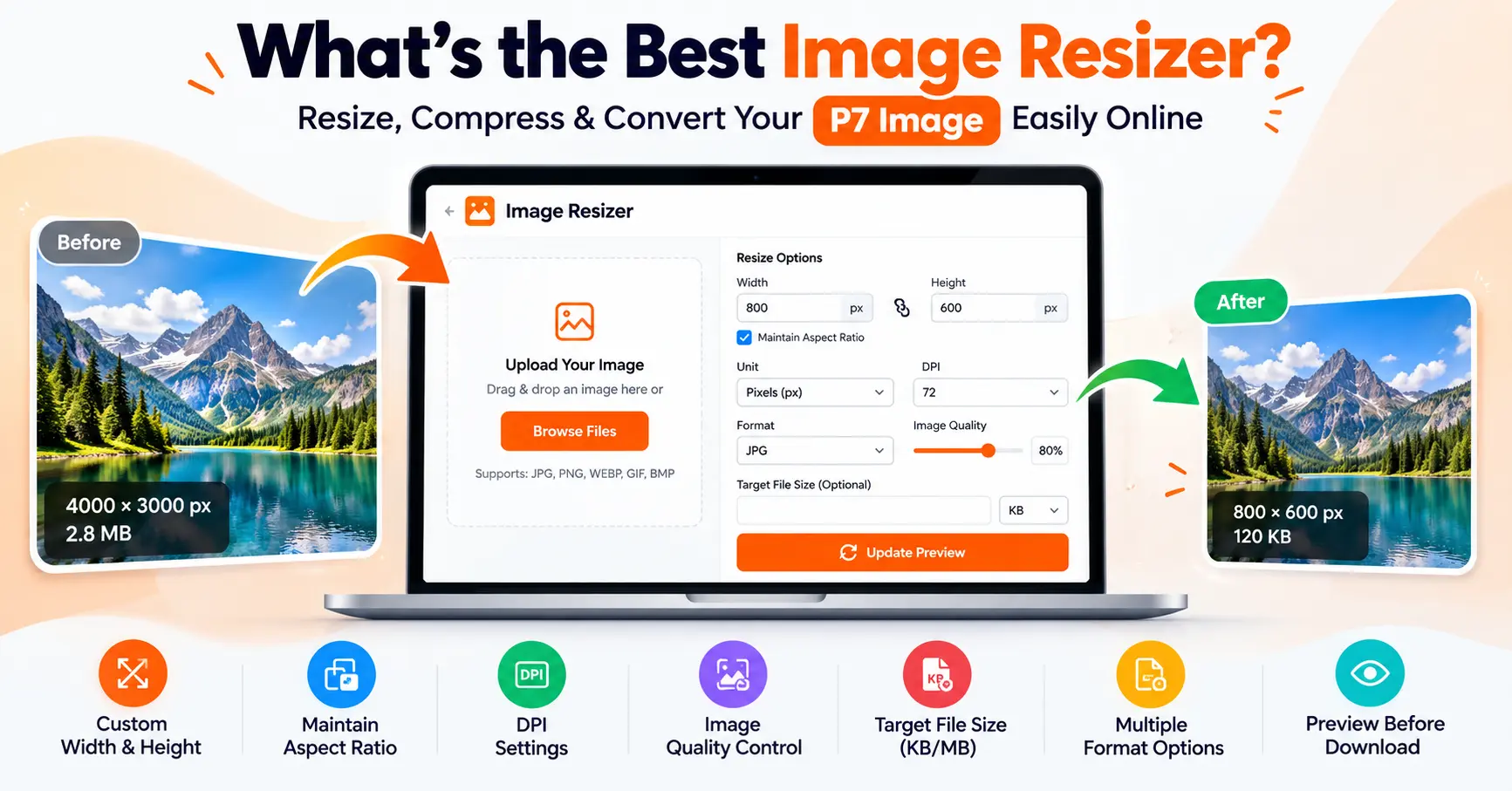
ImageResizers.com provides an online image resizer that lets you upload an image, set custom dimensions, adjust quality, choose a format, and preview the result before downloading it. If you are searching for a P7 image resizer or an easy way to prepare images for online uploads, this guide explains the important features to consider and how to use them.
What’s the Best Image Resizer?
The best image resizer is one that matches your requirements without making the process unnecessarily complicated. For everyday image resizing, look for a tool that supports custom width and height, maintains the original aspect ratio, allows quality adjustments, and provides an easy way to download the finished image.
For users who need more control, an image resizer with target file size settings can be especially useful. For example, an online application might require a photograph below a specified KB limit. In that situation, changing the dimensions alone may not be enough; you may also need to adjust image quality.
The Image Resizer on ImageResizers.com provides controls for dimensions, percentage scaling, physical measurements, DPI, image quality, output format, and target file size. You can preview the resized image and check its dimensions and file size before downloading it.
What to Look for in the Best Image Resizer
-
Custom dimensions: Enter the exact width and height required.
-
Aspect ratio control: Keep the original proportions to avoid stretching the image.
-
Target file size: Work toward a required size in KB or MB.
-
Quality adjustment: Control JPEG quality to balance image clarity and file size.
-
DPI settings: Set a resolution value for workflows that require it.
-
Format options: Choose a suitable output format for your needs.
-
Preview before downloading: Check the result before saving it.
-
Simple interface: Resize images without needing advanced editing skills.
Not every image resizer offers all these controls. Before choosing a tool, check whether it supports the specific dimensions, formats, and file-size requirements you need.
What Is a P7 Image Resizer?
The term “P7 Image” may be used by people searching for P7 image resizing or compression tools. On ImageResizers.com, you can use the online image resizer to change image dimensions and adjust supported output settings. The website also provides a separate P7 Image Compressor for users whose main goal is to reduce file size.
These two tasks are related but not identical. Resizing usually changes the pixel dimensions of an image, while compression focuses on reducing the amount of data needed to store the file. Depending on your image and selected settings, either process can affect the final file size.
If your image already has the correct dimensions but is too large to upload, try the P7 Image Compressor. If you need to change the width or height, start with the image resizer instead.
How to Resize an Image Online
You can resize an image in a few simple steps using the online tool.
Step 1: Upload Your Image
Open the online Image Resizer and select your image using the Browse Files button. You can also drag and drop an image into the upload area.
Choose the correct file before continuing. Check the original image preview, dimensions, and file size so you know what you are starting with.
Step 2: Choose the Required Dimensions
Select the size unit that matches your task. The available options include pixels, percentage, inches, and centimeters.
For example, if a website requires an image that is 600 pixels wide, enter the required width. If you want to scale an image proportionally, use percentage scaling or keep the aspect ratio option enabled.
Step 3: Adjust Image Quality and File Size
For JPEG output, you can adjust the quality setting. A lower quality value can reduce the file size, but it may also introduce visible compression artifacts.
If you have a specific file-size requirement, enter your target in KB or MB and use the target-size control. The final size depends on the original image, its dimensions, format, and content, so an exact result cannot be guaranteed for every image.
Step 4: Select the Output Format
Choose the format appropriate for your intended use. JPEG is commonly used for photographs, while PNG is useful when you need lossless image data or transparency support in an appropriate workflow.
If you need to convert an image from one format to another rather than simply change its dimensions, use the Image Converter.
Step 5: Preview and Download
Click Update Preview to see the resized result. Review the new dimensions and file size, and make any further adjustments if necessary.
When you are satisfied with the result, click Download Resized Image to save the output file.
Image Resizing vs. Image Compression
Image resizing and image compression are often confused, but they solve different problems.
| Feature | Image Resizing | Image Compression |
|---|---|---|
| Main purpose | Change image dimensions | Reduce file size |
| Typical setting | Width and height | Quality or compression level |
| Can reduce file size? | Yes, in many cases | Yes |
| Useful when | Specific dimensions are required | Upload or storage limits matter |
| Main consideration | Correct proportions and dimensions | Balance between size and quality |
For example, if an image is 3000 × 2000 pixels and you need a smaller version for a website, resizing can help. If the image already has the required dimensions but exceeds an upload limit, compression may be the more suitable option.
You can use the P7 Image Compressor when reducing image file size is your primary goal. If you want to change the image format, use the online Image Converter.
How to Resize an Image to a Specific KB or MB
Some websites and application forms specify a maximum image file size. For example, a form might ask for a photograph below 100 KB or a signature below 50 KB.
To prepare an image for such a requirement:
-
Check the official upload instructions for the permitted dimensions and file size.
-
Upload your image to the image resizer.
-
Enter the required dimensions if they are specified.
-
Use the target file-size setting in KB or MB.
-
Preview the output and check the resulting file size.
-
Download the image and verify that it meets the upload requirements.
Remember that a target-size setting is an attempt to reach the requested size, not a guarantee that every image will reach it exactly. If you need a smaller file and the dimensions are already correct, the P7 Image Compressor may be a better starting point.
Which Image Format Should You Choose?
Choosing the right image format is an important part of preparing images for websites, forms, and everyday use.
JPEG or JPG
JPEG is widely used for photographs and images with many colors. Its compression can produce relatively small files, although excessive compression may reduce visible quality.
PNG
PNG is useful for graphics, screenshots, text-heavy images, and images that need transparency. Depending on the image, PNG files may be larger than comparable JPEG files.
WebP
WebP is a modern image format used widely on websites. It supports lossy and lossless compression, with transparency support. If you need to convert an image into a different format, use the Image Converter.
The best format depends on the image itself and the requirements of the website or application where you plan to use it.
How DPI Affects Image Resizing
DPI stands for dots per inch and is commonly associated with printing. Image pixel dimensions determine how many pixels are available, while DPI helps describe the intended print resolution.
For example, a photograph with a particular pixel width can print at different physical sizes depending on its resolution setting. However, changing the DPI value alone does not automatically create more image detail. If your task requires a specific print size or resolution, check the relevant specifications before resizing.
Can You Resize Images Without Losing Quality?
Some loss of quality can occur when an image is resized, particularly when it is enlarged significantly or saved repeatedly using lossy compression. Reducing dimensions may also remove fine detail because fewer pixels remain in the output.
For better results:
-
Keep the original image as a backup.
-
Maintain the aspect ratio when appropriate.
-
Avoid enlarging small images excessively.
-
Use suitable JPEG quality settings.
-
Select the correct output format for your image.
-
Preview the result before downloading it.
No image resizer can guarantee that every image will retain exactly the same visual quality after every type of resizing or compression.
When Do You Need a PDF Compressor?
An image resizer works with images, while a PDF compressor is intended for PDF documents. If you have scanned documents, forms, or image-based PDFs that exceed an upload limit, resizing the original image may not be sufficient once it has been placed inside a PDF.
In that case, use the PDF Compressor on ImageResizers.com to reduce the PDF file size toward your required target.
For example, you might resize a photograph before adding it to a document, convert multiple images into a PDF, and then compress the resulting PDF if the application has a strict file-size limit.
If you need to turn photographs into a document first, the JPG to PDF Converter can help you combine supported images into a PDF. You can then use the PDF compressor if further size reduction is necessary.
Why Use ImageResizers.com?
ImageResizers.com brings several everyday file tools together in one place. Depending on your task, you can resize an image, compress an image, convert image formats, or prepare PDF files without searching for a separate tool for every step.
The online image resizer includes:
-
Custom width and height controls.
-
Percentage-based resizing.
-
Inches and centimeters for physical dimensions.
-
Aspect ratio control.
-
DPI settings.
-
JPEG quality adjustment.
-
Target file size settings in KB or MB.
-
Output format selection.
-
Original and resized image previews.
-
File-size and dimension comparisons.
-
A download option for the resized image.
The interface is designed for common image-preparation tasks, including website images, online uploads, personal photographs, and documents that require specific image dimensions.
Frequently Asked Questions
Q1- What’s the best image resizer to use online?
Ans- The best choice depends on your requirements. ImageResizers.com is an option if you want to adjust dimensions, control supported output settings, preview the result, and download a resized image through a browser-based interface.
Q2- What is P7 Image used for?
Ans- P7 Image searches may refer to image resizing or compression. You can use the P7 Image Compressor when your main goal is to reduce image file size, or the Image Resizer when you need to change image dimensions.
Q3- Can I resize an image to a specific width and height?
Ans- Yes. The image resizer lets you enter width and height in pixels. You can maintain the aspect ratio when you want to preserve the image’s original proportions.
Q4- Can I resize an image to 100 KB?
Ans- You can use the target file-size setting to work toward 100 KB. The actual result depends on the original image, output format, dimensions, and quality settings.
Q5- Is resizing the same as compressing an image?
Ans- No. Resizing changes dimensions, while compression reduces file size. Some resizing operations also reduce file size, and some compression methods can affect image quality.
Q7- Which tool should I use to convert an image format?
Ans- Use the Image Converter when you need to change a supported image format instead of only changing the dimensions.
Q8- How can I reduce a PDF file size?
Ans- Use the PDF Compressor to work toward a smaller PDF file size. The amount of reduction depends on the document and its contents.
Q9- Can I use an online image resizer on my phone?
Ans- A responsive online tool can be used from a compatible mobile browser. The experience may vary depending on your device, browser, and image size.
Conclusion: Choose the Right Image Resizer for Your Needs
So, what’s the best image resizer? It is the tool that gives you the dimensions, output settings, and file-size control required for your particular task.
The Image Resizer on ImageResizers.com lets you adjust image dimensions, set supported output options, preview your result, and download the resized file. If you need to reduce an image’s file size, try the P7 Image Compressor. If you need to change the format, use the Image Converter. For PDF documents, use the PDF Compressor.
Start with the tool that matches your goal, check the output against the original requirements, and download your file when it is ready.