Minecraft Image Converter – Turn Images into Minecraft Pixel Art
Looking for a simple Minecraft Image Converter? This online tool lets you transform regular images into Minecraft-style pixel art. Upload an image, choose the pixel or block size, select a color palette and create a pixelated version of your picture.
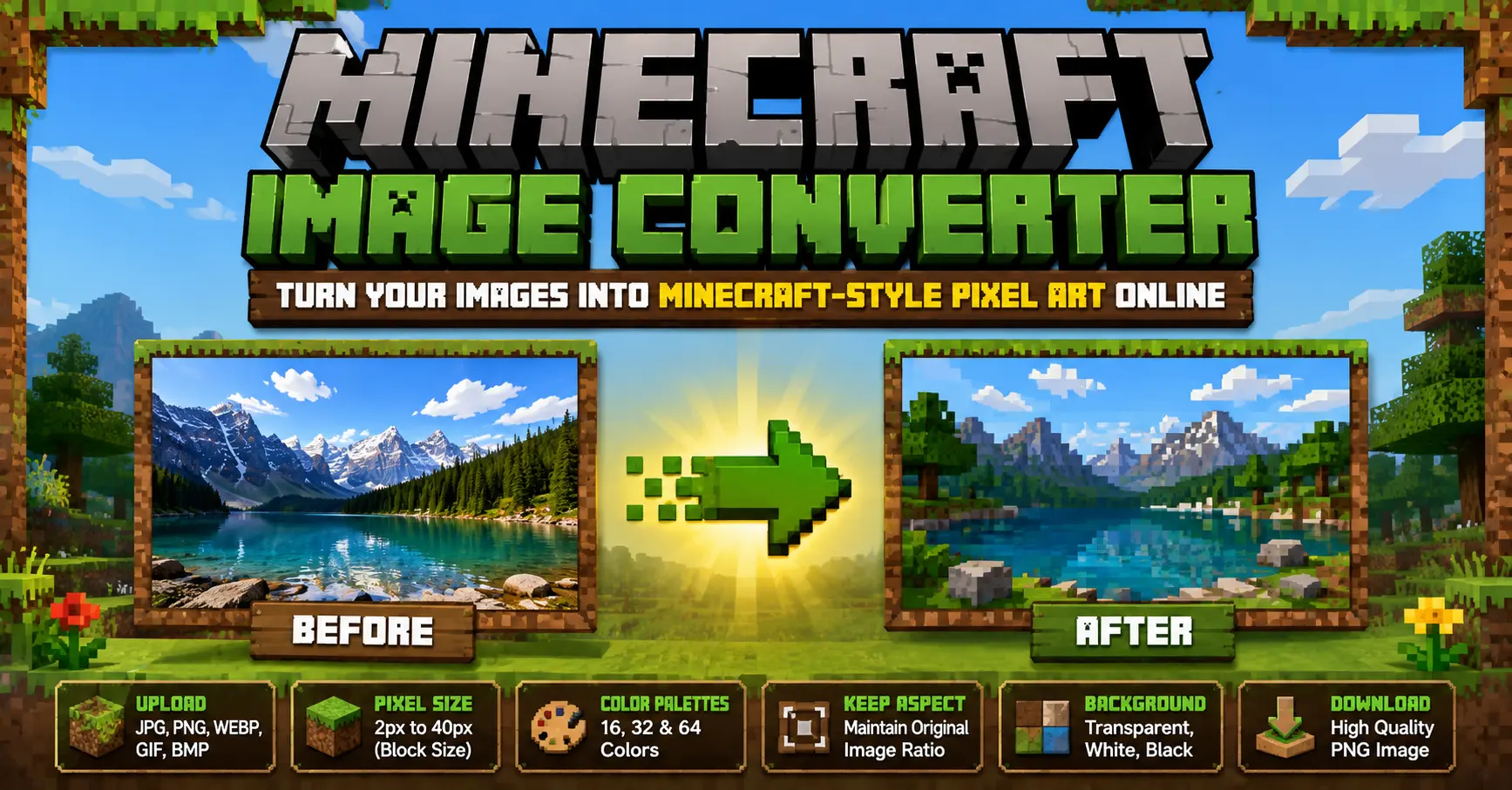
Free Minecraft Image Converter
The Minecraft Image Converter is designed for users who want to convert ordinary pictures into pixel art inspired by the blocky visual style of Minecraft. You can upload an image and customize the pixel size, color palette, aspect ratio and background before creating your final artwork.
The tool supports JPG, PNG, WEBP, GIF and BMP image formats and accepts files up to 100 MB. After uploading, your original image is displayed in the preview area before you start creating the pixel art.
How Does Minecraft Image Converter Work?
The converter reduces the image into smaller pixel areas and maps the colors to a selected palette. The result is displayed as pixel art with a blocky appearance. You can adjust the available settings to create different levels of pixelation.
- Upload a JPG, PNG, WEBP, GIF or BMP image.
- Choose the desired Pixel / Block Size.
- Select a color palette.
- Choose whether to keep the original aspect ratio.
- Select a background option.
- Click Craft Pixel Art.
- Preview the original image and pixel-art result.
- Click Download PNG to save the finished image.
Convert Image to Minecraft Pixel Art
With this Minecraft Image Converter, you can turn regular photographs, graphics and other supported images into a Minecraft-inspired pixel-art style. The Pixel / Block Size slider gives you control over how strongly the image is pixelated.
A smaller pixel size can retain more visual detail, while a larger pixel size creates a chunkier block-style appearance. You can experiment with different settings until you find the look you prefer.
Minecraft Pixel Art Color Options
The color palette affects the appearance of the generated pixel art. The converter provides three palette choices: 64 Colors, 32 Colors and 16 Colors. This allows you to control how many different colors are used in the converted image.
- 64 Colors: Provides more color variety in the artwork.
- 32 Colors: Gives a balanced pixel-art appearance.
- 16 Colors: Creates a simpler and more limited color style.
Choose Pixel or Block Size
The Pixel / Block Size option controls the level of pixelation applied to your image. The available range is from 2px to 40px, allowing you to create both detailed and chunky pixel-art effects.
Try several values to see which one works best for your image. The right setting depends on the original image and the type of Minecraft-style effect you want to create.
Keep the Original Aspect Ratio
The Keep Aspect option helps preserve the proportions of your original image during the conversion process. When this option is enabled, the image keeps its overall shape instead of being forced into a square format.
You can turn the option off when you want to create a different output shape for your pixel art.
Choose a Background
The Minecraft Image Converter provides three background choices for the generated artwork: Transparent, White and Black. Choose the option that best matches how you plan to use the final image.
- Transparent: Keeps the background transparent.
- White: Adds a white background.
- Black: Adds a black background.
Why Choose Our Minecraft Image Converter?
Our Minecraft Image Converter combines simple controls with a Minecraft-inspired interface. You can customize the main conversion settings before creating your pixel art and compare the original image with the generated result.
- Easy Upload: Drag and drop an image or browse your device.
- Multiple Formats: Supports JPG, PNG, WEBP, GIF and BMP.
- 100 MB Limit: Supports image files up to 100 MB.
- Adjustable Pixel Size: Choose from 2px to 40px.
- Multiple Palettes: Select 16, 32 or 64 colors.
- Aspect Control: Keep the original aspect ratio when required.
- Background Options: Choose transparent, white or black.
- Original Preview: View your uploaded image before conversion.
- Pixel Art Preview: Compare the generated artwork with the original.
- PNG Download: Save the finished pixel art as a PNG.
Minecraft Image Converter for Creative Projects
A Minecraft Image Converter can be useful for creating pixel-art concepts, gaming graphics, thumbnails, creative artwork and other block-style designs. Converting an existing image into pixel art can give it a distinctive Minecraft-inspired appearance.
Since the tool provides controls for pixel size and color count, you can create different versions of the same image by changing the conversion settings.
Use Minecraft Image Converter on Mobile
You can also use the Minecraft Image Converter through a mobile browser. Select an image from your device, adjust the available options and tap Craft Pixel Art to generate the result.
The responsive interface adapts to smaller screens, making it convenient to upload an image, change settings and preview your finished pixel art on a phone or tablet.
Download Minecraft Pixel Art as PNG
After the conversion is completed, the generated artwork appears in the Pixel Art preview. When you are satisfied with the result, click Download PNG to save the finished image to your device.
If you want to create another design, use the Reset option to clear the current image and start again with a new picture.
Frequently Asked Questions
A Minecraft Image Converter is an online tool that transforms regular images into Minecraft-style pixel art using adjustable pixel sizes and color palettes.
The converter supports JPG, PNG, WEBP, GIF and BMP image formats.
The tool accepts image files up to 100 MB.
Yes. You can adjust the Pixel / Block Size from 2px to 40px to control the pixelated appearance of your image.
You can choose between 16 Colors, 32 Colors and 64 Colors.
Yes. The Keep Aspect option allows you to preserve the proportions of the original image during conversion.
Yes. You can select Transparent, White or Black as the background option for the generated pixel art.
The finished Minecraft-style pixel art is downloaded as a PNG image.
Yes. The responsive interface can be used through a mobile browser on supported devices.
Create Minecraft Pixel Art Online
Use the Minecraft Image Converter above to turn your favorite images into pixelated artwork. Upload your image, adjust the pixel size, choose a color palette, select the background and click Craft Pixel Art.
Conclusion
The Minecraft Image Converter provides a simple way to transform regular images into blocky pixel art. With adjustable pixel sizes, 16, 32 and 64 color palettes, aspect-ratio control and background options, you can customize the appearance of your generated artwork.
Upload a supported image, experiment with the available settings and download your finished Minecraft-style pixel art as a PNG. The simple workflow makes it easy to create pixelated artwork directly from your browser.